From idea to a deployed airport observer in about 15 minutes with a coding agent.
Suppose you want an OAK camera to monitor activity around an aircraft at the gate: ground crews preparing for departure, baggage being loaded, service vehicles arriving, or visible conditions that could warrant attention or contribute to delays. A VLM can describe these scenes in plain language, helping an operator review what’s happening without defining a separate detection rule for every situation. But a useful application needs more than descriptions: it also needs live video, control over when the model runs, and a record of the images behind its observations.
In about 15 minutes, a coding agent built and deployed that application on an RVC4 device using LFM2.5-VL-450M. The video stays live while the model analyzes selected frames, and each observation is searchable later with its input image, prompt, timestamp, and end-to-end latency.
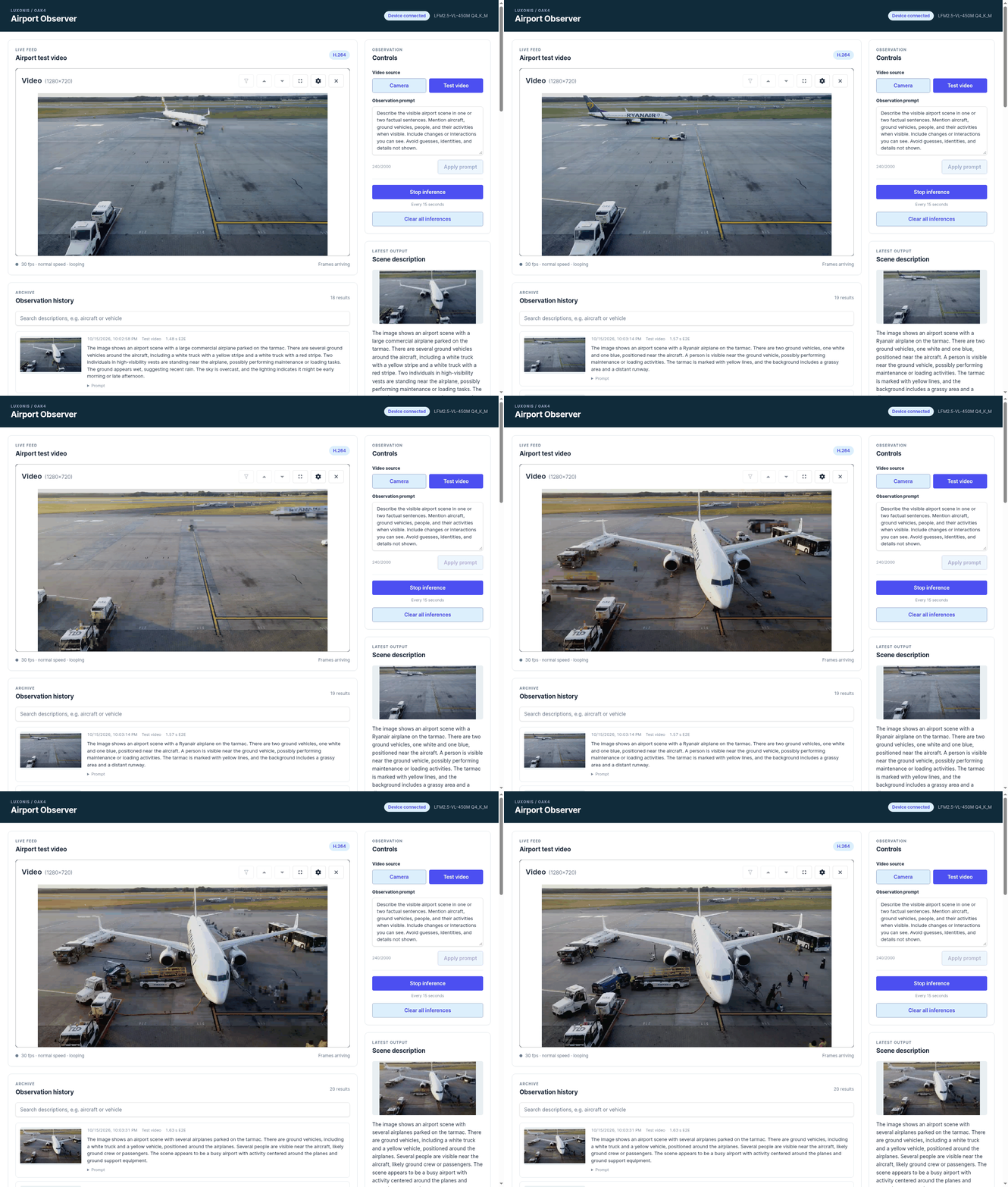
Airport Observer in action: the prerecorded airport clip plays beside new scene descriptions. (The same interface can use the live camera.)
1. Give your agent the OAK toolkit
Start by installing the Luxonis Agent Toolkit in your coding agent. The installation guide covers Codex, Claude Code, and Cursor. The toolkit brings OAK-specific workflows and current documentation into the agent’s environment, so it can inspect examples, work with the device, and verify the result. You can begin with a plain-language goal; the agent selects the relevant workflow.
Follow the Luxonis Agent Toolkit installation guide for your agent, then open the project folder in a fresh session.
2. Pick a model for the observation rate you need
We looked at vision-language models under 1 billion parameters. For continuous observation, model size affects memory use and how soon the next description can be ready. Visual understanding still matters: a fast model that misses aircraft or invents activity is a poor fit.
Our shortlist criteria were:
- Can it describe the objects and interactions that matter in real airport frames, without guessing details?
- Is it small enough to run locally at a useful interval, with room for the camera, video stream, and app?
- Is there a supported llama.cpp GGUF export and a matching vision projector for this exact model?
- Do its license and deployment terms fit the project?
Published results helped us shortlist candidates. The snapshot below compares four sub-1B models across visual reasoning, everyday scenes, expert questions, and object-presence checks. Higher is better, but the scores come from different model reports and evaluation settings, so read them as directional evidence rather than a controlled head-to-head.
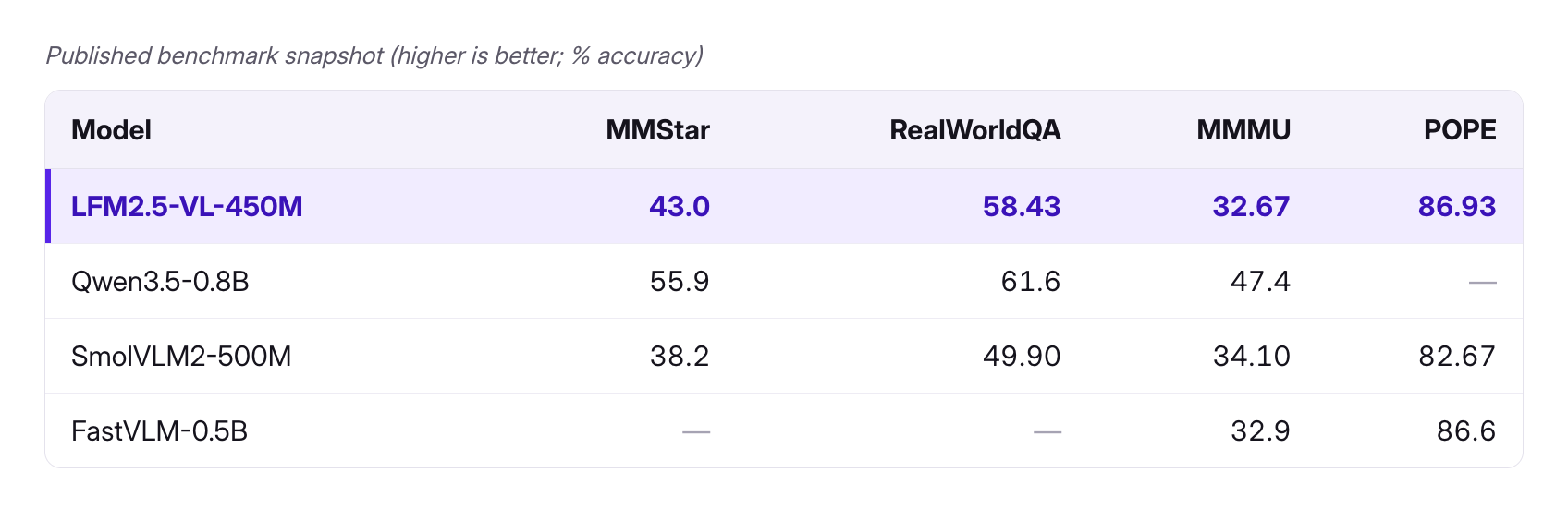
Model cards: LFM2.5-VL-450M, Qwen3.5-0.8B, SmolVLM2-500M, FastVLM-0.5B.
Why these tests? MMStar checks questions that require the image; RealWorldQA asks about everyday scenes and spatial relations; MMMU covers college-level multimodal questions; POPE probes whether a model claims an object is present when it is not. A dash means the cited source did not report a score here.
Source note: LFM2.5 and SmolVLM2 figures come from Liquid AI’s evaluation; Qwen3.5-0.8B figures are its non-thinking results; FastVLM-0.5B’s MMMU and POPE scores are the R4 row in Apple’s paper. The evaluations use different settings and are not a device-speed comparison.
Qwen3.5-0.8B has stronger reported scores on the tests shown, and is a good candidate if accuracy is the priority. We chose the smaller LFM2.5-VL-450M for this first app because it produced useful descriptions from our airport clip at our target observation rate. Plus it is ready to use through the official llama.cpp GGUF. Test the candidates on your own scenes: a different task may favor another model.
The model being supported by llama format makes the deployment effort much easier. Luxonis’s llama.cpp path runs a compatible GGUF model and its matching projector inside a standalone RVC4 app. DepthAI handles capture and streaming, while the app sends selected images and prompts to a local inference server. We did not need a separate SNPE conversion step for this model. Check the supported model, available memory, and actual runtime placement before assuming the same path will work for another VLM.
3. Give the agent a brief that describes the whole experience
A useful prompt names the device and model, but also states what a person should see and control, what data must be saved, and how to test the result. Here is the complete prompt we used:
The prompt we used (verbatim)
I want to build an RVC4 standalone application for continuous airport observation using LFM2.5-VL-450M. The app should periodically analyze frames from the camera's live feed and generate short descriptions of what's happening in the scene (aircraft, vehicles, people, activities, etc.). The app should be stored inside /home/luxonis/airport_observer_app and deployed to the device once finished. The frontend should display the live video stream alongside the latest model outputs. I want to be able to edit the model prompt (prefill it with a sensible airport observation prompt) and start/stop inference without interrupting the video stream. There should be also a button to clear all inferences.
Every inference result should be stored together with the exact frame, prompt, generated description, timestamp and the E2E latency for generating the output. I also want a searchable history where I can type keywords and dynamically see all matching descriptions alongside their corresponding frames. For the frontend, follow the design of existing Luxonis custom apps and reuse Luxonis frontend components. Use an encoded video stream to minimize bandwidth usage. For testing, add an option to switch between the live camera and a prerecorded video (airport_test_video.mp4, already in the project folder). Both modes should behave identically, with the only difference being the video source. The prerecorded video should play at its normal speed and loop.
The RVC4 device is accessible at 192.168.68.100.
First inspect the Luxonis examples, then implement and test the complete application. Reuse existing functionality wherever possible and keep the implementation simple and maintainable.
The details that made this actionable were the acceptance checks: continuous video even when inference is paused, an editable prompt, a searchable image-linked history, and one repeatable test clip. The prompt also asked the agent to inspect existing Luxonis examples before building. Through our Luxonis MCP the agent right away saw llama.cpp VLM example as a suitable base and reused Luxonis frontend components instead of starting from an empty app.
For your own use case, replace “airport” with the scene you care about and describe the decisions the operator needs to make. Specify the output format and what should be saved. Include a representative recording so the agent can test the entire workflow when the real camera is pointed elsewhere.
4. Build, deploy, and verify the installed app
In the finished app, either the camera or the looping airport video feeds the same processing path. An H.264 stream powers the preview; a separate worker samples a frame every 15 seconds for the VLM. The latest description appears beside the video. Stop inference pauses new model requests without stopping the stream, and editing the prompt changes subsequent observations.
Each saved record includes the exact JPEG sent to the model, the prompt, its description, the source, a UTC timestamp, and the time from selecting that frame to receiving the completed answer. Search updates as you type; selecting a result shows its associated image. Clear all inferences removes the saved records and images.
The agent built, deployed, and tested the installed OAK App in about 15 minutes. In our check, the camera feed and the test clip both worked, the clip played at its native 30 fps and looped, and video continued while inference was paused. A changed prompt appeared in the next saved record; keyword search found the matching frame. The observed end-to-end latency was 1.50 seconds for each frame with 66 tokens per second.
After the agent is done with its work make sure to test out the application, try to find bugs or improvements and ask it to iterate on it. Depending on your requirements there might be more or less iterations but in general, try to be as exact as possible in the initial prompt.
5. Use observations as a starting point for better models
The current app keeps observations on the device. A useful next addition would be sending selected frames and metadata to Luxonis Hub as Snaps. Snaps can hold an image attachment with tags and extra fields such as source, prompt, description, and latency, making field events easier to review and search.
From there, relevant images can become samples in a Hub AI dataset. A team could review and label aircraft, vehicles, or activities, then train a focused classifier or object detector. The VLM’s descriptions can help find candidate frames, but they should be reviewed before they become training labels. Hub AI’s dataset workflow separates samples, annotations, review status, and training runs.
If you have experience training VLMs or other transformer-based models, you could even feed those images into your own pipeline to fine-tune the VLM for even more specific tasks that require generalization, such as potentially misplaced luggage, unsafe operation, or other delay-causing issues.
The same pattern applies beyond airports: choose a compact model that can describe your scene, give an agent a complete app brief, and verify the deployed workflow against representative footage. Once the first version works, its saved observations can tell you what to improve next.
Links