Luxonis Hub is the control plane for managing and deploying applications directly to OAK devices. It allows you to remotely bring devices online, install apps, and run complete computer vision pipelines without needing a separate host PC or cloud infrastructure.
Through the Apps tab, you can deploy prebuilt Hub Apps or your own custom applications, enabling OAK 4 to run complex, multi-stage vision workflows entirely on-device. With its onboard compute, OAK 4 supports chaining multiple computer vision models together, combining detection, cropping, refinement, and analysis into a single, efficient pipeline.
This post walks through how to connect a device to Luxonis Hub, install and run Hub Apps, and explores a practical example of model chaining using the Focused Vision app. It also shows how to package and publish your own applications to Hub, so you can move from prototype to deployment with minimal setup.
Connecting a Device via OAK Viewer
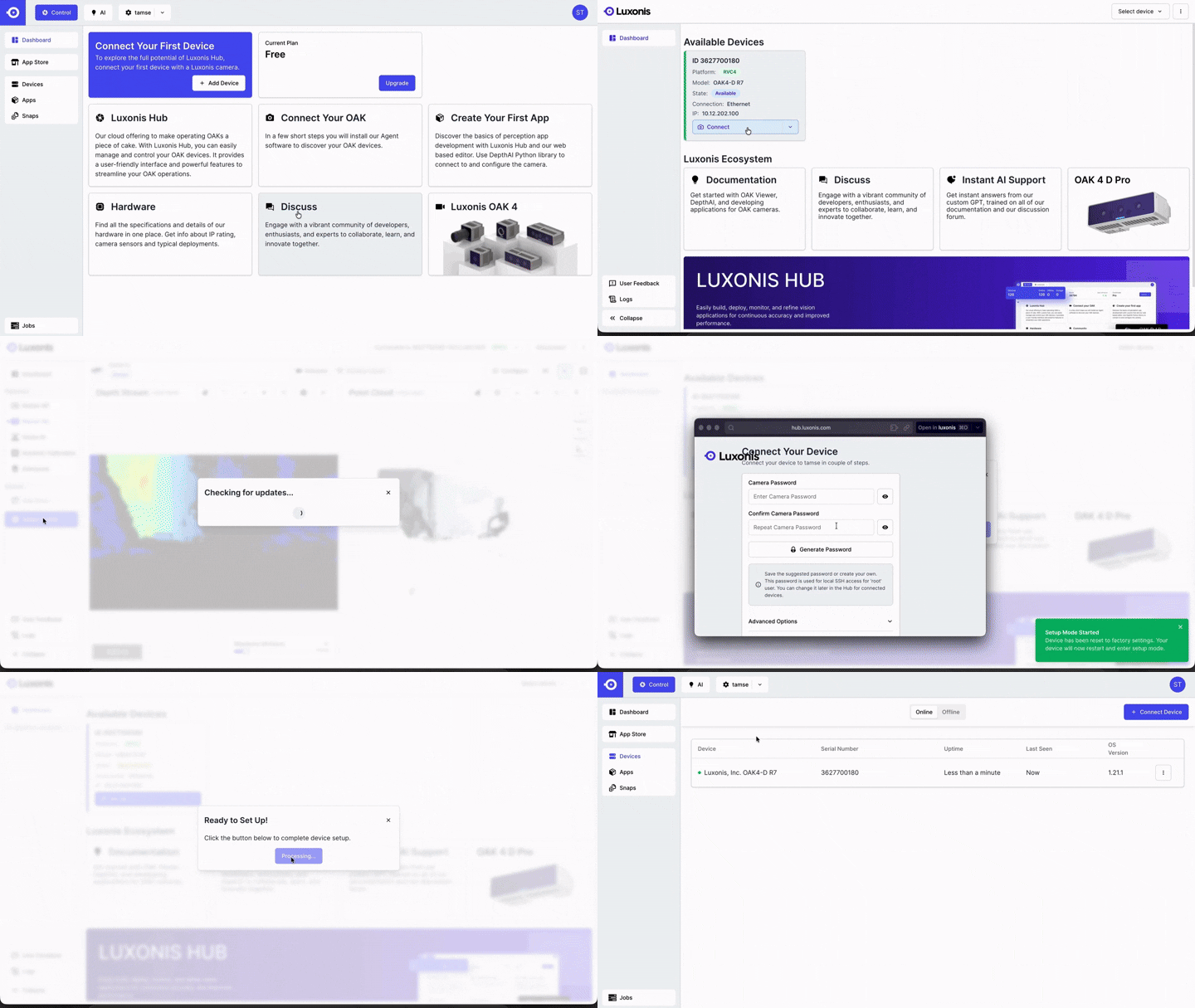
You can connect your OAK4 D to Luxonis HUB using OAK Viewer in just a few steps.
Step-by-step
Download OAK Viewer
- Download the latest version here.
Log into Luxonis HUB
Add a new device
- Click Add New Device, you’ll automatically be redirected to OAK Viewer.
Connect and adopt the device
Finish setup
The device will restart
A new window will open asking for your camera password
Once entered, the device will appear in Luxonis HUB
Installing an App from the App Store
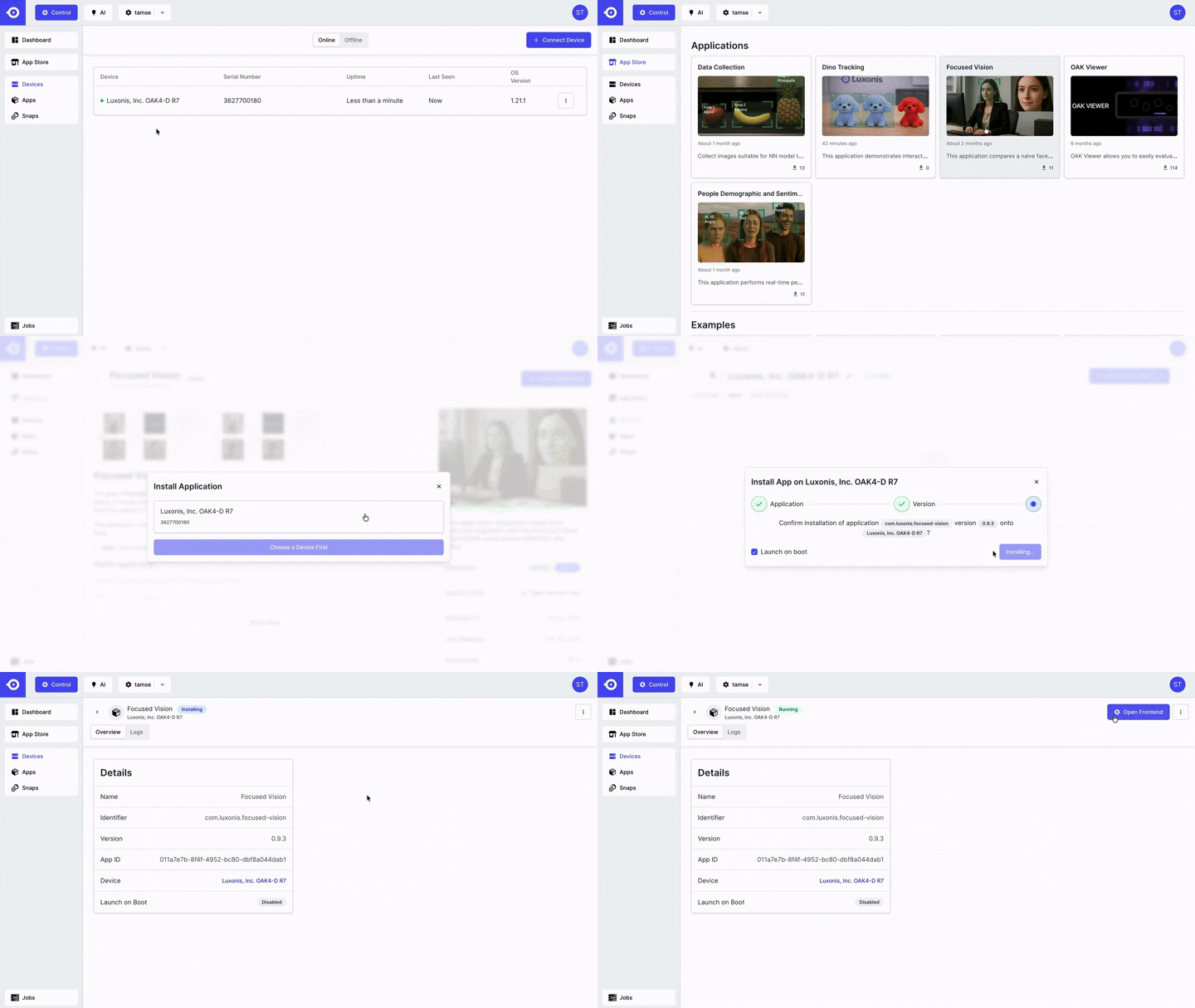
Luxonis HUB provides a range of prebuilt apps that you can use for:
How to install and run an app
Open the App Store
Select the app you want to try
Click Install Application
Follow the installation instructions
Once installed, click Open Frontend to start using it
Focused Vision Application Overview
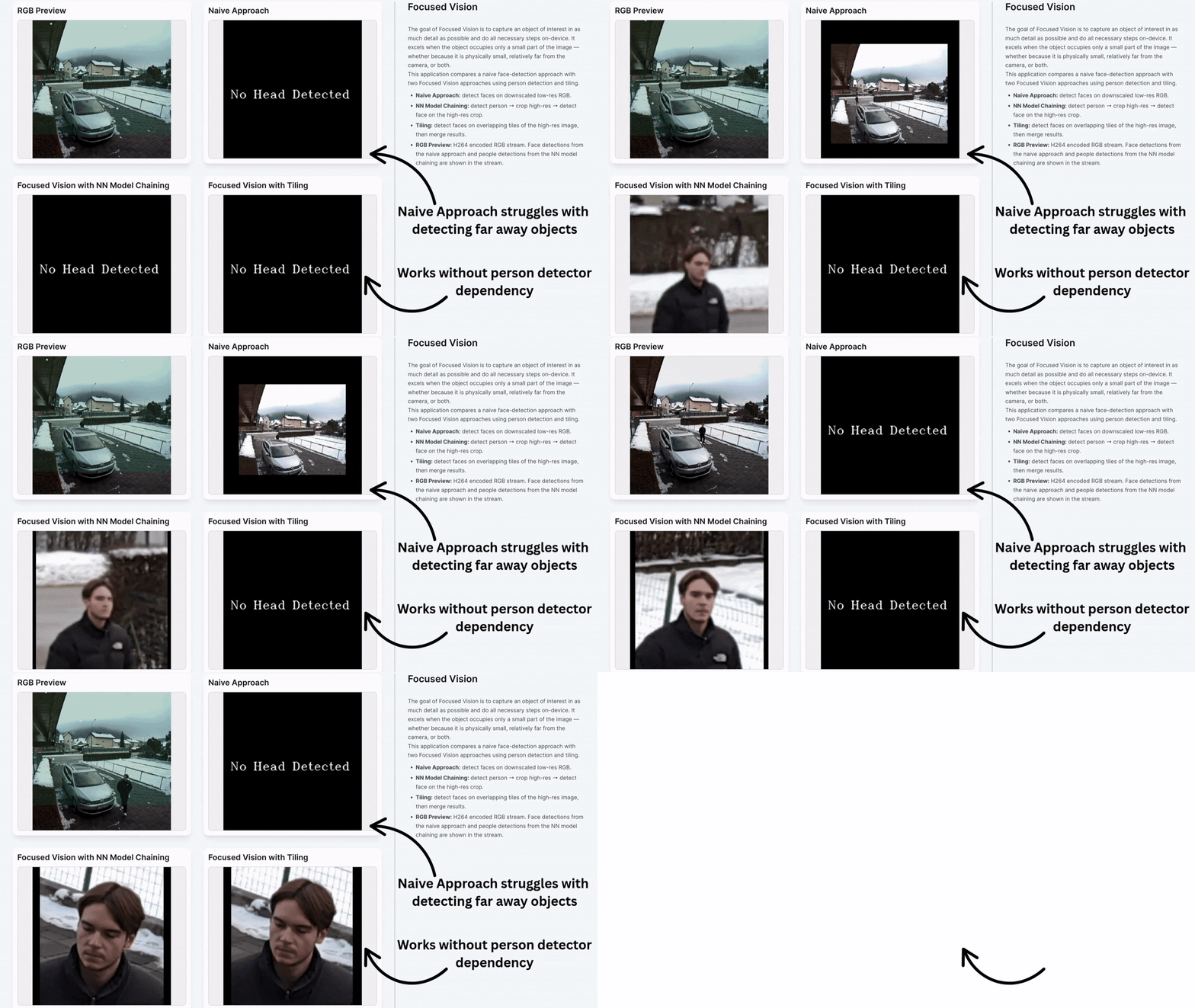
Focused Vision is designed to capture an object of interest in as much detail as possible while performing all key steps fully on-device.
It works best when the object occupies only a small part of the image, for example:
What the application demonstrates
This application compares:
Model Chaining in Focused Vision (NN Model Chaining)
One of the Focused Vision approaches demonstrates neural-network model chaining, where multiple neural networks are executed sequentially to improve detection reliability.
This example uses a two-stage neural-network pipeline:
Stage 1 – Person Detection
A person is detected on the full 2000 × 2000 high-resolution image.
The detected person region is then cropped at full resolution, preserving fine visual detail.
Stage 2 – Face Detection on the Crop
The face detector runs on the cropped person image, which is downscaled to 320 × 240, the same input size used in the naive approach.
Why model chaining improves results
The key difference is where downscaling happens:
Naive approach
The entire image is downscaled to 320 × 240 before face detection, causing faces to become small and lose detail.
NN model-chaining approach
Only the high-resolution person crop is downscaled, preserving far more facial detail in the face detector’s input.
As a result, the face detector receives a clearer, more information-rich image, which substantially increases the chance of successful face detection, all while running entirely on-device.
📌 You can read more about Focused Vision here.
Building and Publishing Your Own App
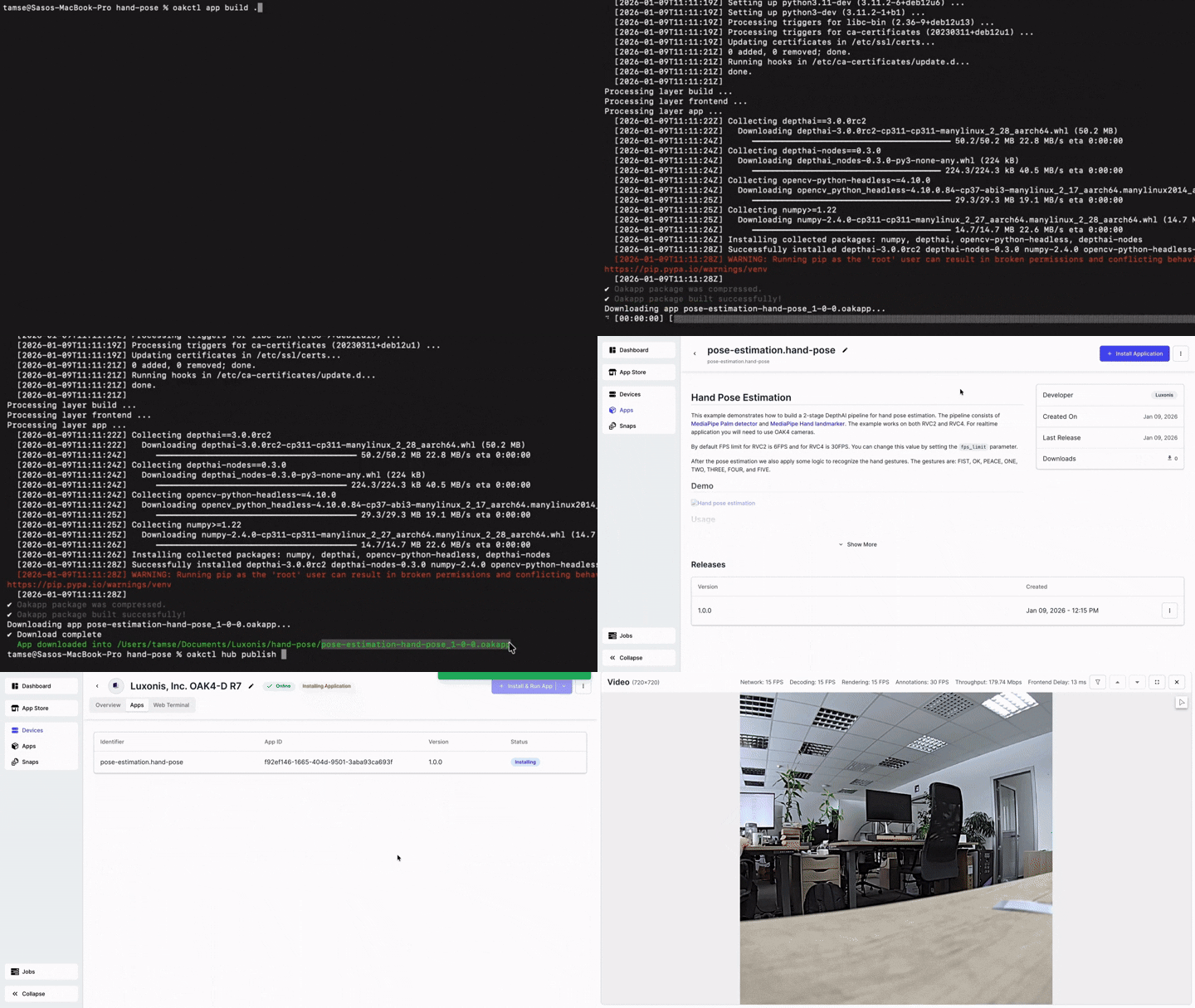
You can publish your own app to Luxonis HUB using oakctl.
1) Create your first oakapp
Follow the guide here.
For this example, I used the hand-pose app from the oak-examples GitHub repository.
2) Log in to the Hub via CLI
oakctl hub login
3) Build the application
Run this inside your app directory:
oakctl app build .
This generates an .oakapp file.
4) Publish the app to Luxonis HUB
oakctl hub publish <your_app.oakapp>
After publishing, go to Luxonis HUB, the app should appear under the Apps tab.
If the “Open Frontend” button doesn’t appear
You can open the frontend manually in your browser:
https://<device-ip>:8082