If you’ve ever wanted to run your Roboflow models directly on a DepthAI device and instantly see the results, this new integration makes it really simple. No complicated setup. No heavy coding. Just plug in your device, connect your workflow, and watch everything come to life.
And because OAK4 is a fully standalone AI camera, the entire Roboflow Workflow can run directly on-device—no extra hardware, no cloud dependency, and no code required. It’s one of the fastest ways to turn a Roboflow project into a real-world computer vision system.
Explore the code on our GitHub Example!
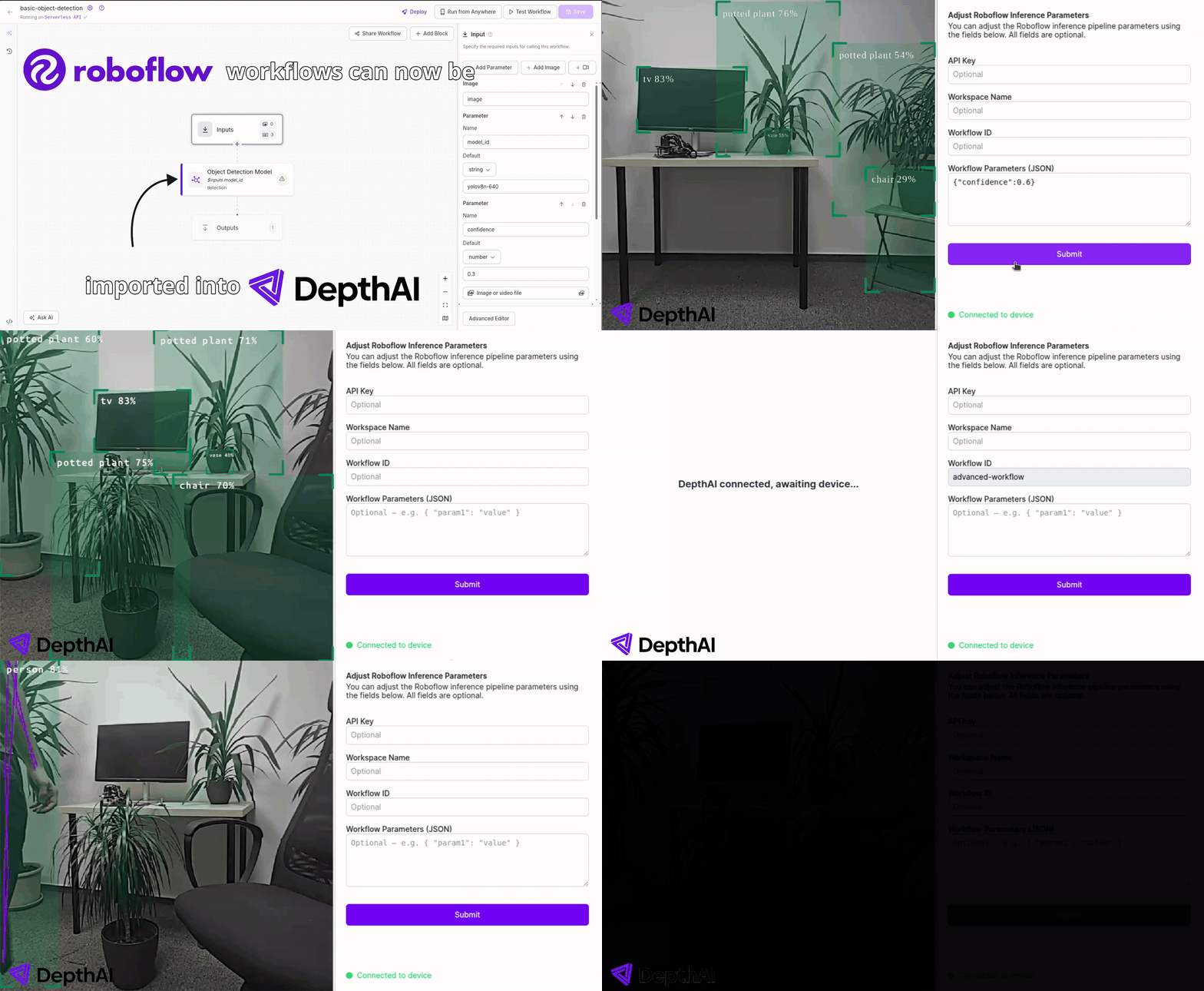
What This App Does
This demo connects a OAK camera device with Roboflow Workflow, allowing you to:
- Capture live video from your OAK device
- Run that video through your Roboflow detection models
- See the results in real time inside the DepthAI Visualizer
- Change settings on the fly through an easy-to-use interface
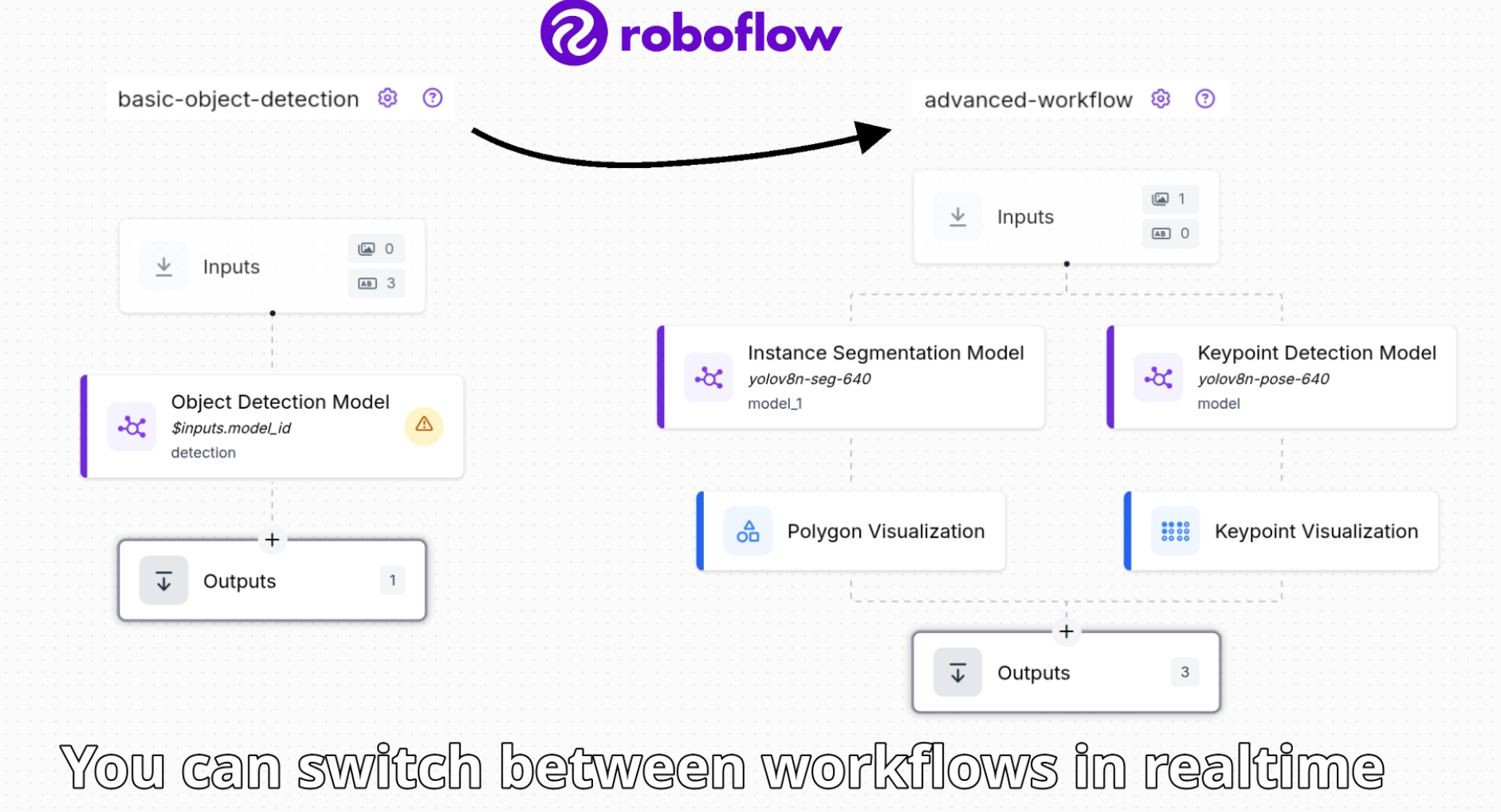
It’s perfect for exploring ideas, testing models, or building early versions of CV-powered products.
This app works with any OAK camera, but OAK4 offers the easiest out-of-the-box experience since it’s a fully standalone AI device — just power it on and it’s ready to run the workflow without needing a separate host computer or cloud connection.
Right now, Roboflow Workflows run on OAK4’s CPU, but an optimized, accelerator-powered version is coming soon for faster on-device inference.
Getting Started
Before you run the app, you’ll need a Roboflow Workflow.
Here’s the quick setup:
- Create your Workflow in the Roboflow web app
- Click Deploy → Video → Live Video
- Select Run locally
- Copy the values shown (workspace name, workflow ID, etc.) into the app’s
config.yaml file
- Add your Roboflow API key
- Match the workflow parameters to the inputs you defined in your Workflow
Through config.yaml you can also change things like device type, frame size, and frame rate to adjust it to your needs.
How Visualization Works
The app decides how to display results based on simple naming rules:
- If an output name contains "predictions", it parses into DepthAI bounding box and shows it as an overlay
- If it contains "visualization", it displays it as an image
- Any other workflow outputs are ignored by the app
So if you want something to appear in the visualizer, just name it clearly!
Want More Advanced Visuals?
If you’re feeling creative, Roboflow Workflows let you add:
- Custom image overlays
- Personalized annotations
- Fully customized visual outputs
You’re not limited to simple bounding boxes—you can tailor the visuals to whatever makes sense for your project. To see what's possible, check out our OAK4-CS x Microscope blogpost where we used Roboflow to train a model to detect soldering defects.
Standalone Mode (For RVC4 Devices)
If you’re using an OAK RVC4 device, you can run the whole app locally on the device, without needing a separate computer or a connection to the cloud.
Just:
Install oakctl
Clone and run the app:
git clone --depth 1 --branch main https://github.com/luxonis/oak-examples.git
cd oak-examples/integrations/roboflow-workflow/
oakctl connect
oakctl app run .
Then open the local DepthAI Visualizer in your browser to watch everything in action.
Final Thoughts
This integration makes it easier than ever to experiment with real-time computer vision. With just a few setup steps, you can:
- Stream video from DepthAI
- Run Roboflow models instantly
- View results without writing extra code
- Adjust everything through a clean user interface
It’s a simple, powerful way to bring your ideas to life—whether you’re prototyping, learning, or building full applications.
Ready to get started? Here’s the full example